

Wiki Pro
Wiki is where your organization's shared knowledge lives — company policies, onboarding materials, technical guides, architecture decisions, and anything else that matters beyond a single project.
Unlike project pages, which focus on work happening inside a specific project, Wiki pages belong to the workspace and are accessible to every workspace member. This makes Wiki the right place for documentation that crosses team boundaries.
Wiki Home
Home is the landing page you see when you open Wiki. It gives you a personalized overview of your Wiki activity so you can pick up where you left off or quickly capture an idea.
Recents shows the pages you've accessed or modified most recently, along with timestamps and the page owner. Click any page to jump straight into it, or click Show all to see the full history.
Stickies are personal quick-capture notes pinned to the bottom of the Home screen.
What you see in the sidebar
The Wiki sidebar organizes content into sections:
- Home - your personalized landing page with recents and stickies.
- Collections - your folders of pages. Each collection can hold pages and nested pages. The General collection is created automatically and holds any pages that haven't been moved elsewhere.
- Shared - private pages that have been shared with you by other members.
- Private - pages only you can see (unless you share them).
- Archived - pages that have been archived for reference.
Collections Pro
Collections are folders for your Wiki pages. They give you a way to group related pages together.
TIP
With Collections, all existing Wiki pages are automatically grouped into a default collection called General. From there, you can create new collections and reorganize pages however you like.
Create a collection
- Click the + icon next to the Collections heading in the Wiki sidebar.
- In the Create a collection modal, give the collection a title.
- Optionally choose an icon to help visually distinguish it.
- Click Create collection.
The new collection appears in the sidebar and is ready for pages.
Move pages between collections
Drag and drop any page from one collection to another in the sidebar. The page moves immediately.
You can also move pages into or out of nested positions within a collection by dragging them to the desired level.
Browse a collection
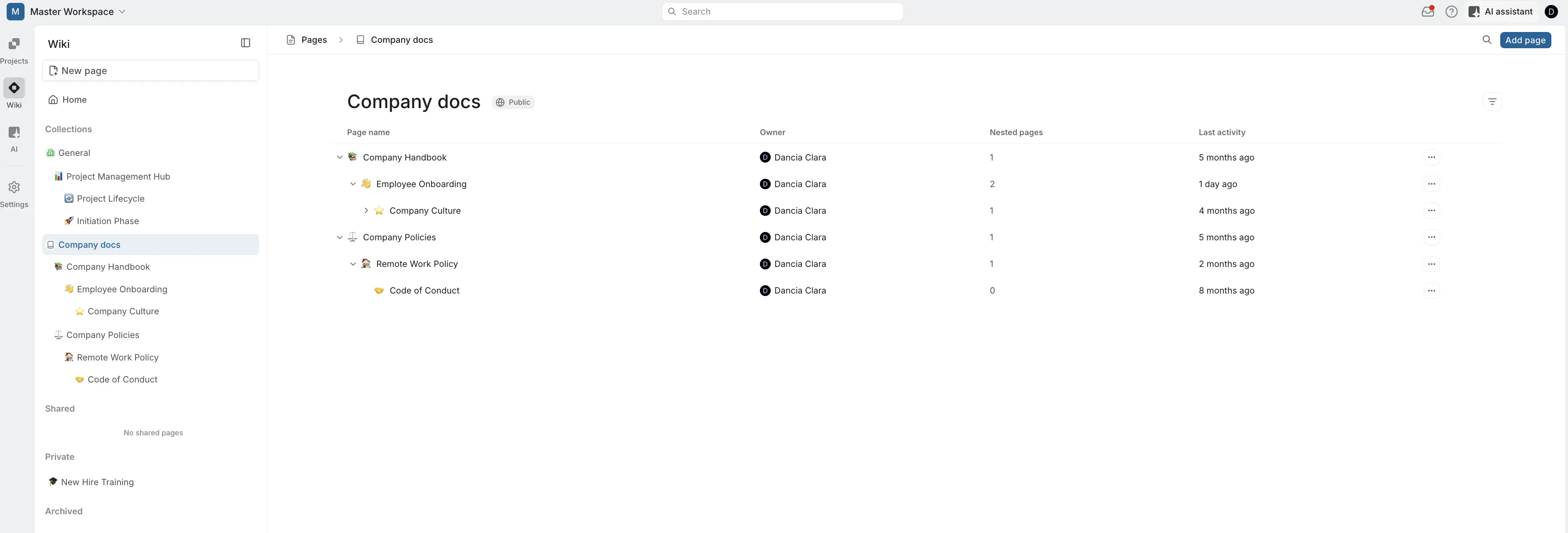
Click a collection name in the sidebar to see its contents in the main area. The collection view shows each page's name, owner, nested page count, and last activity date.
From here you can:
- Add a page directly into the collection using the Add page button in the top right.
- Copy a link to any page via the … menu on that row.
- Filter pages by Favorites, Created date (1 week, 2 weeks, 1 month, or a custom range), or Created by (any workspace member).
- Search within the collection using the search icon.
Delete a collection
- Open the collection you want to delete.
- Click the ellipsis icon next to the collection on the sidebar to select Delete.
- In the Delete collection dialog, choose what happens to the pages inside:
- Transfer pages and delete collection — moves all pages to another collection you select. Pages and their permissions are preserved. Note that moved pages will inherit the permissions of the destination collection.
- Delete collection with pages — permanently deletes the collection and all its pages. This action can't be undone.
- Click Delete collection.
Create and manage Wiki pages
Create a new page
- Click New page at the top of the Wiki sidebar.
- The page opens in the editor. Start writing your content — it saves automatically.
- By default, new pages are added to the collection that you are in. Drag the page to a different collection in the sidebar if needed.
Public vs. private pages
Pages can be public (visible to all workspace members) or private (visible only to you, unless you share it).
- Public pages appear in their collection and are accessible to anyone in the workspace with Wiki view permissions.
- Private pages appear in the Private section of your sidebar. Other members cannot see them unless you explicitly share access.
Edit a page
Open a page and start typing. Wiki pages support rich text editing, and multiple members can edit a public page collaboratively. Changes are saved automatically.
Archive a page
If a page is no longer actively used but you want to keep it for reference:
- Open the page.
- Use the page options to Archive it.
Archived pages move to the Archived section of the sidebar. They can be unarchived later if needed.
Lock a page
Locking prevents other members from editing a page while still allowing them to view it. The page creator (or an Admin) can lock and unlock pages at any time.
Publish a page
Publishing makes a page available outside your workspace via a public URL. Use this for documentation you want to share externally — product guides, API references, or public knowledge bases.
Export a page
Pages can be exported for use outside of Plane. Open the page and use the export option to download it.
Share private pages Business
Private pages are only visible to their creator by default. On the Business plan and above, you can selectively share private Wiki pages with specific workspace members, giving you fine-grained control over who sees sensitive documentation.
Share a private page
- Open any private page you've created.
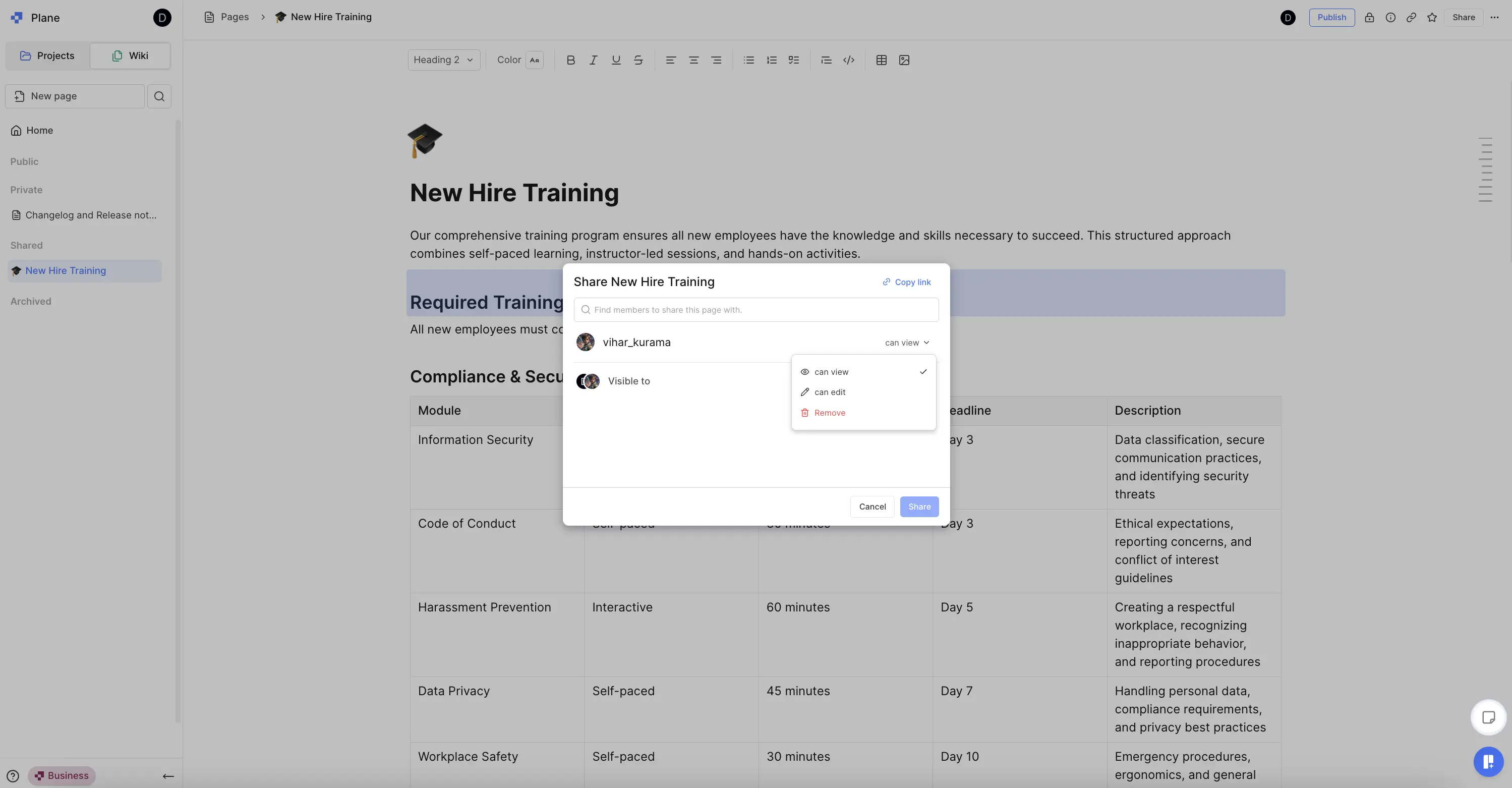
- Click the Share button in the top-right corner.
- Search for and add the members you want to share with.
- Set permissions for each person:
- can view — the person can read the page but not edit it.
- can comment — the person can add comments on the page.
- can edit — the person can make changes to the page content.
- Click Share.
Shared pages appear in the Shared section of the recipient's Wiki sidebar.
Manage shared access
The page creator retains full control over sharing. To update access after sharing:
- Open the shared page and click Share.
- Click the dropdown next to a member's name to change their permission level.
- Select Remove to revoke their access entirely.